Enable Sign In with Google
This requires adding the authentication feature on Firebase.
Step 1
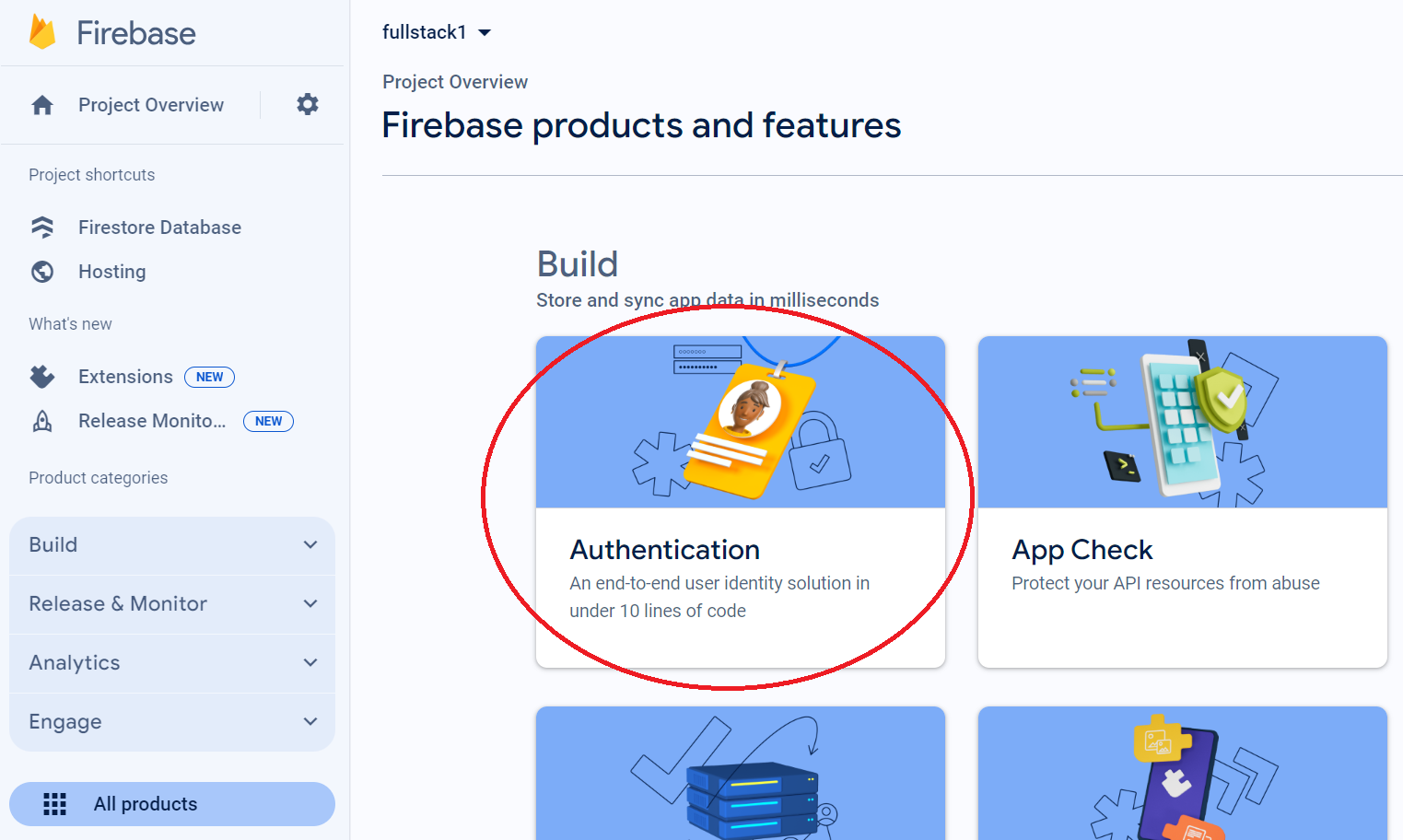
Step 2
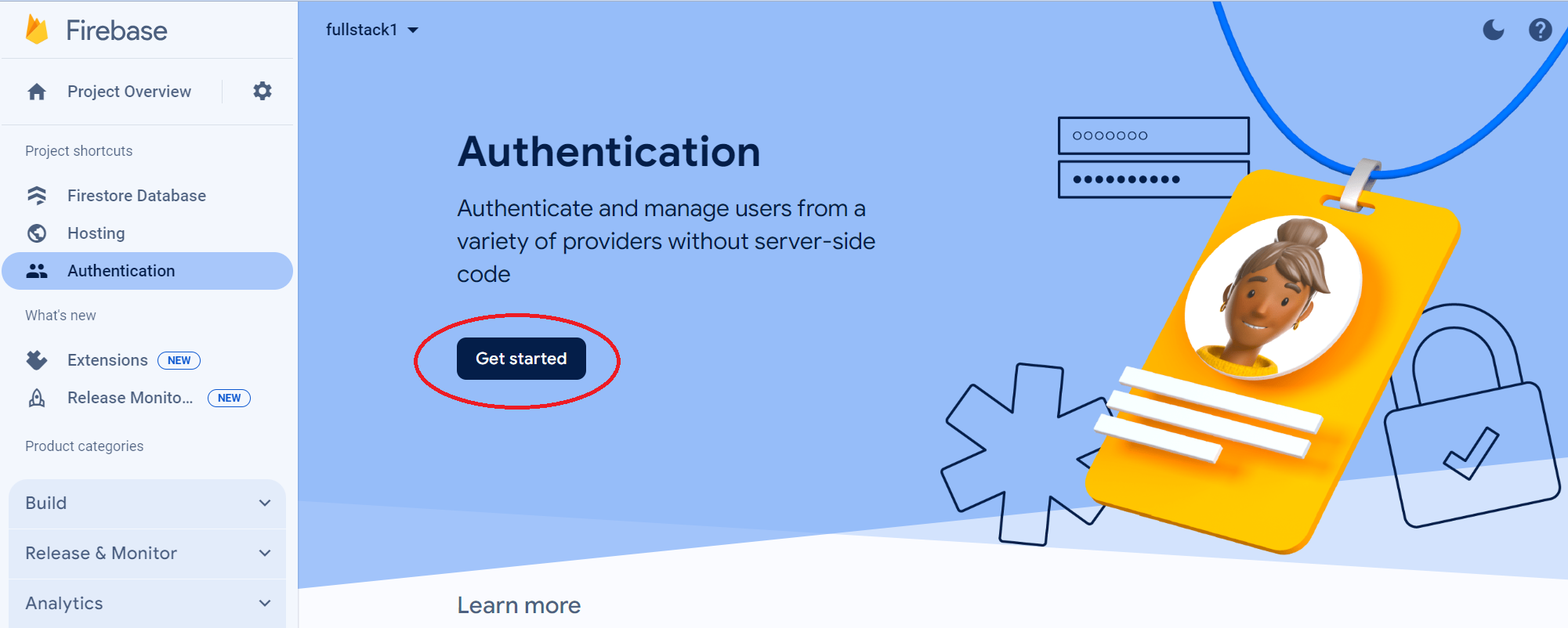
Step 3
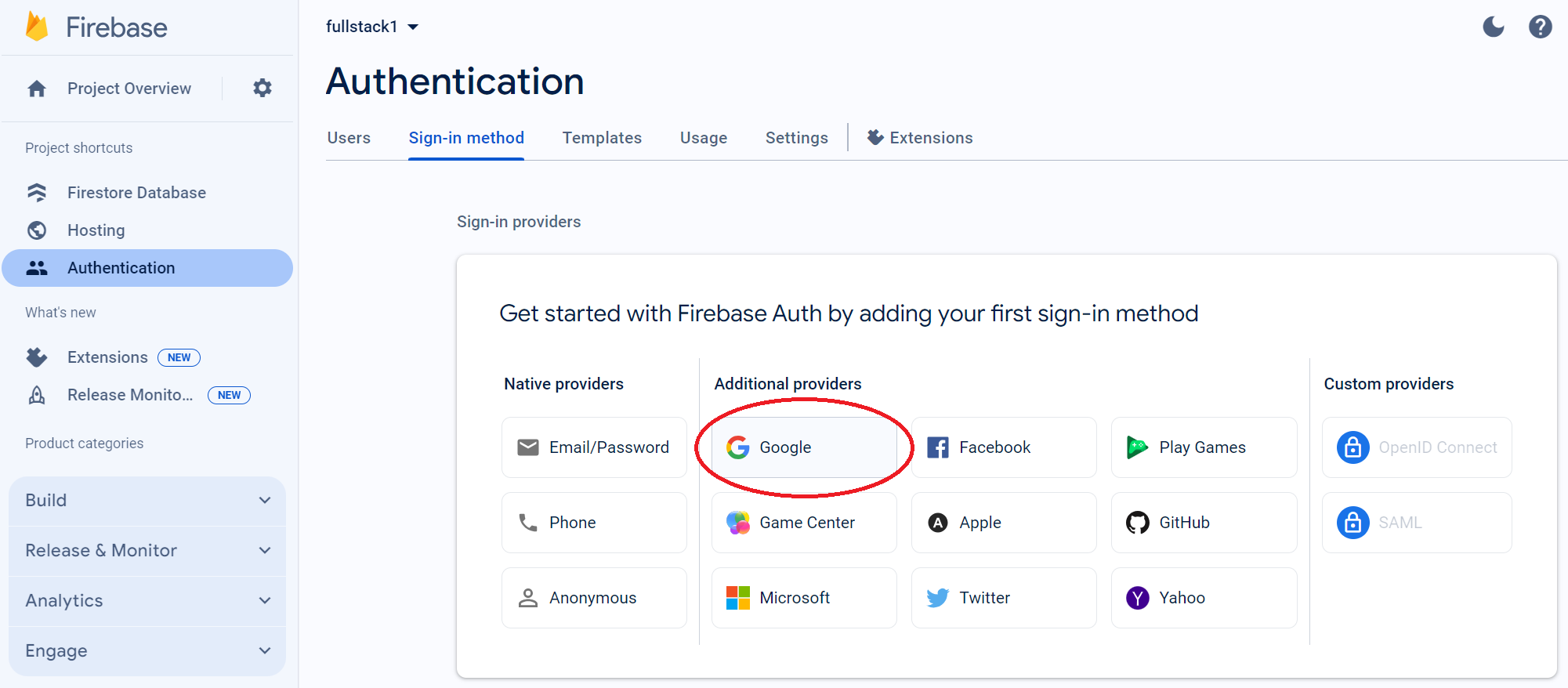
Step 4
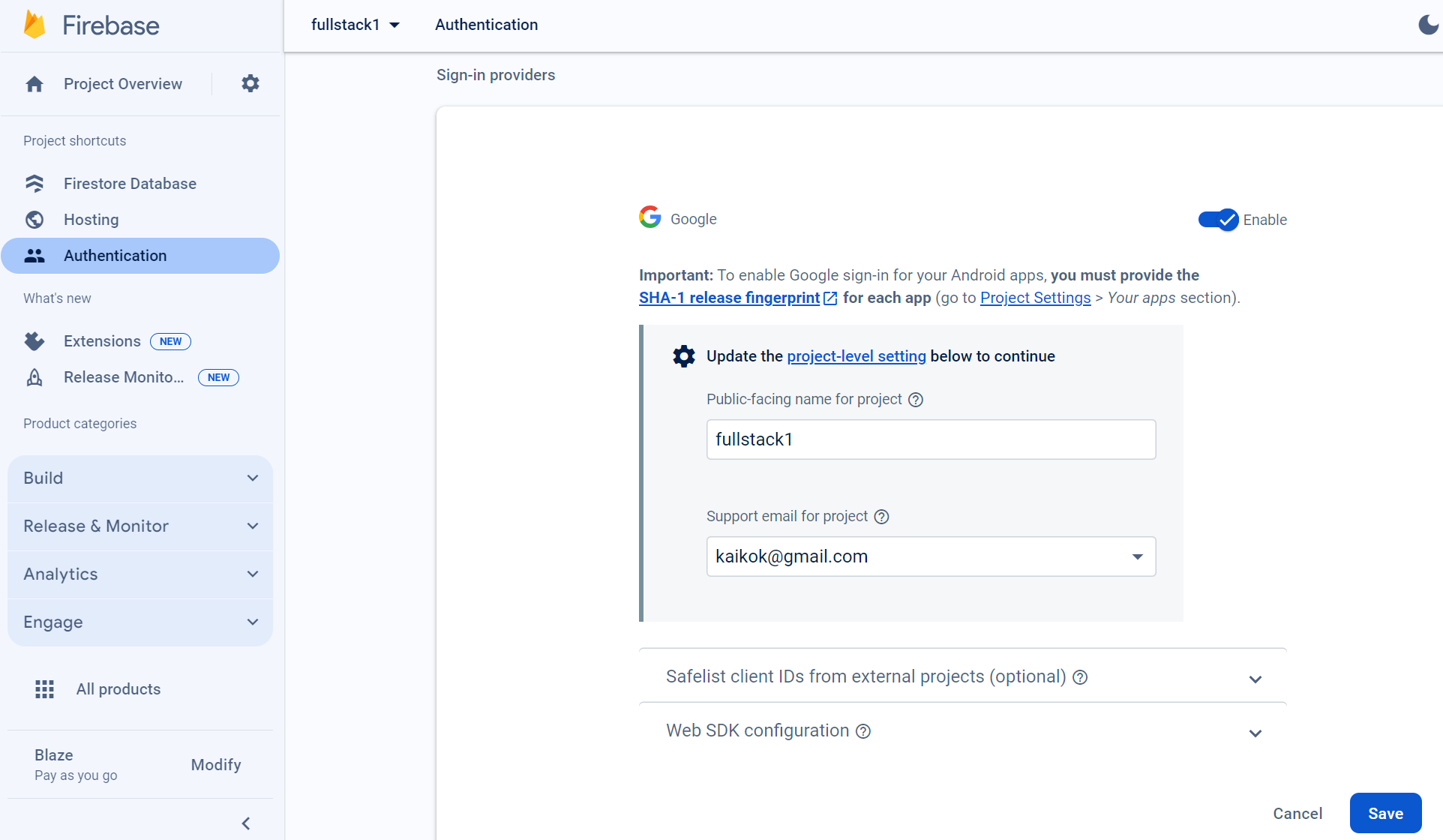
Step 5
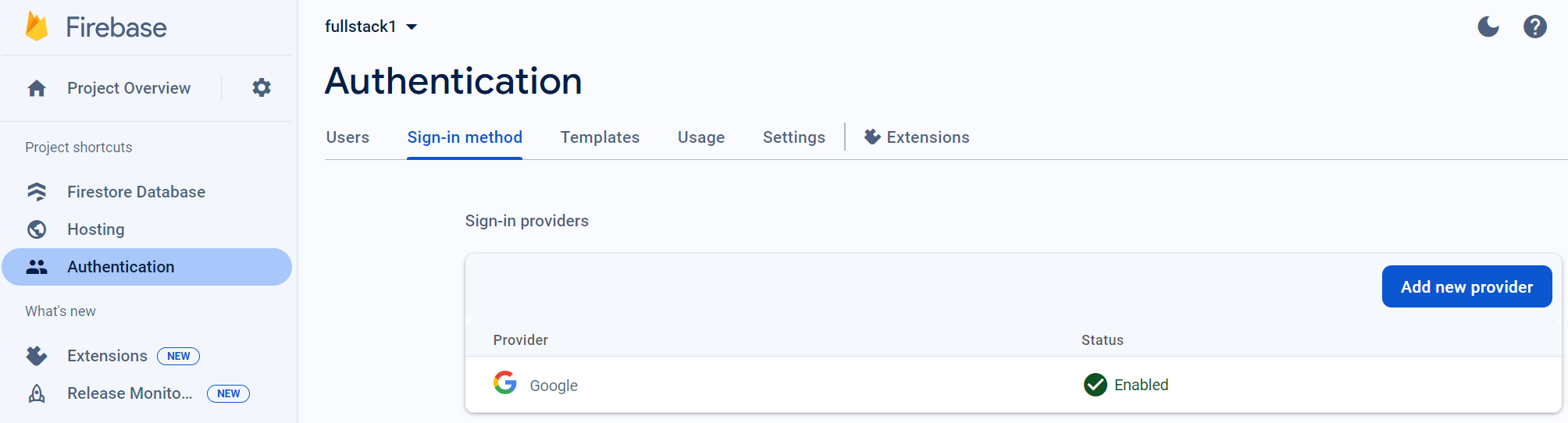
Step 6
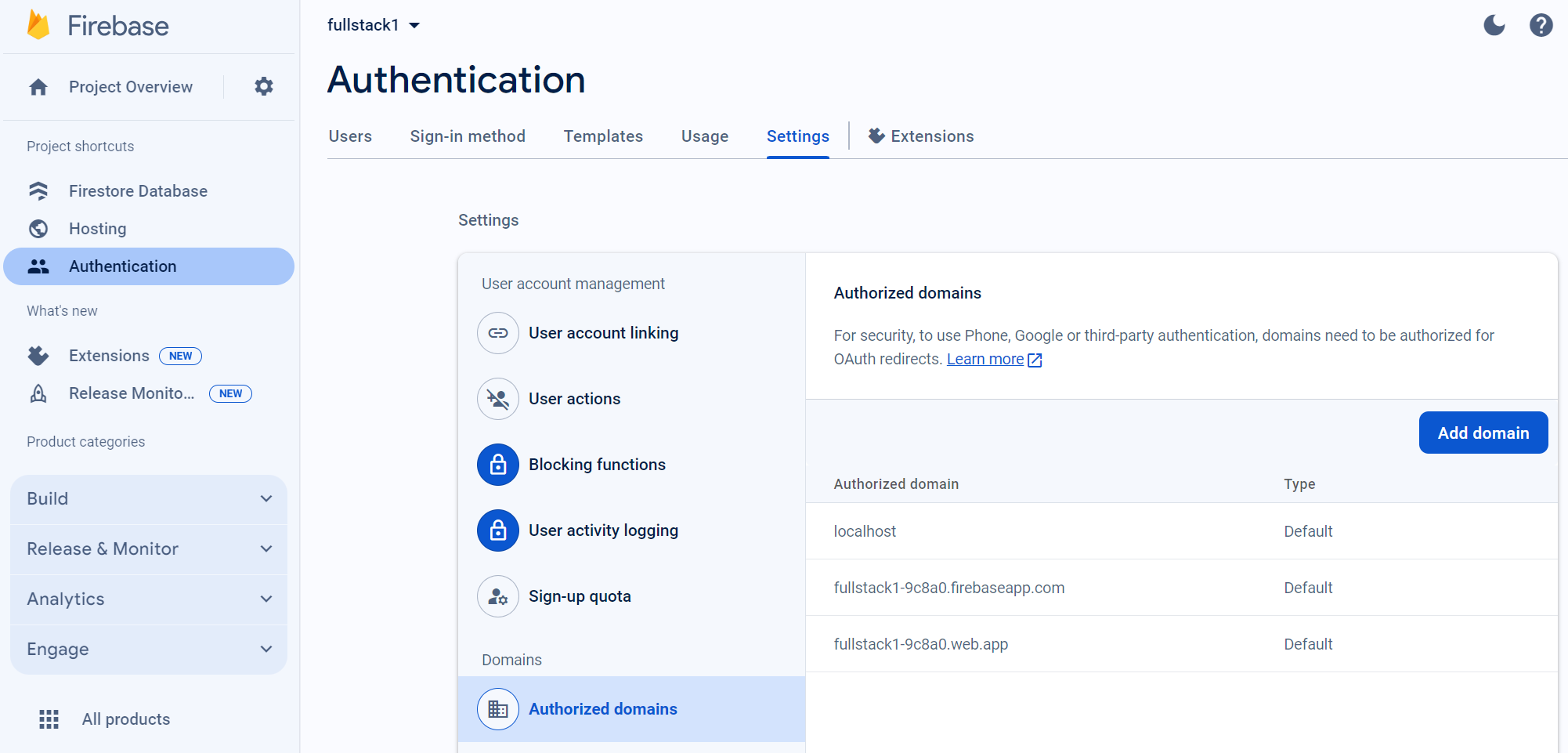
Visit the Google APIs page to update the OAuth credentials for your project.
https://console.cloud.google.com/apis
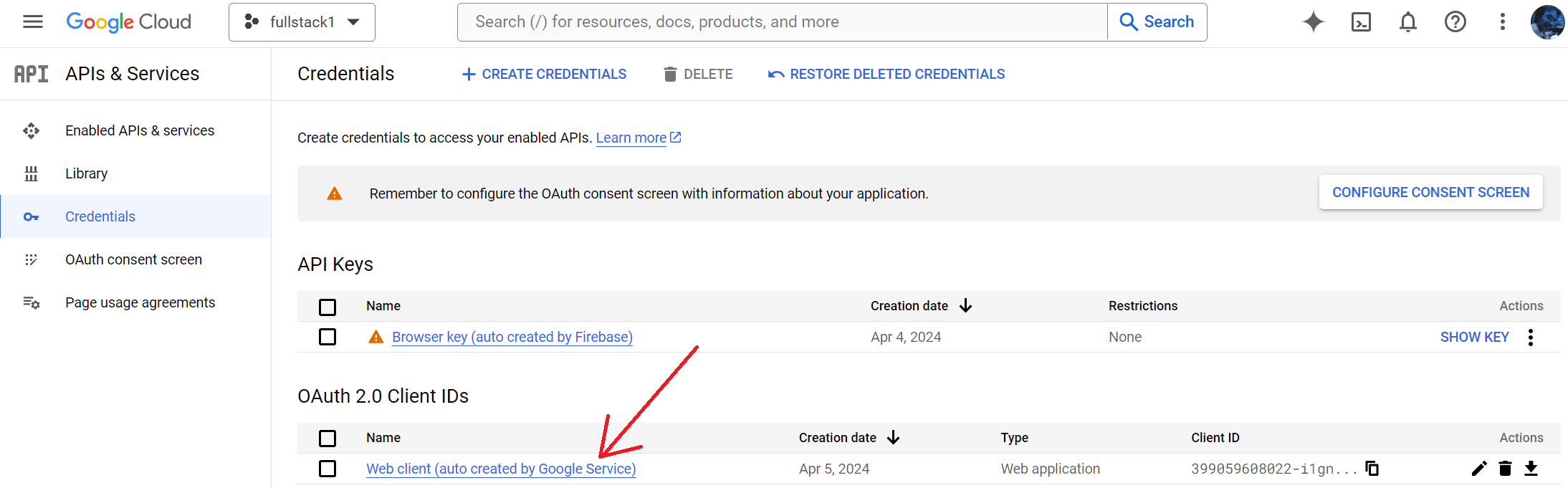
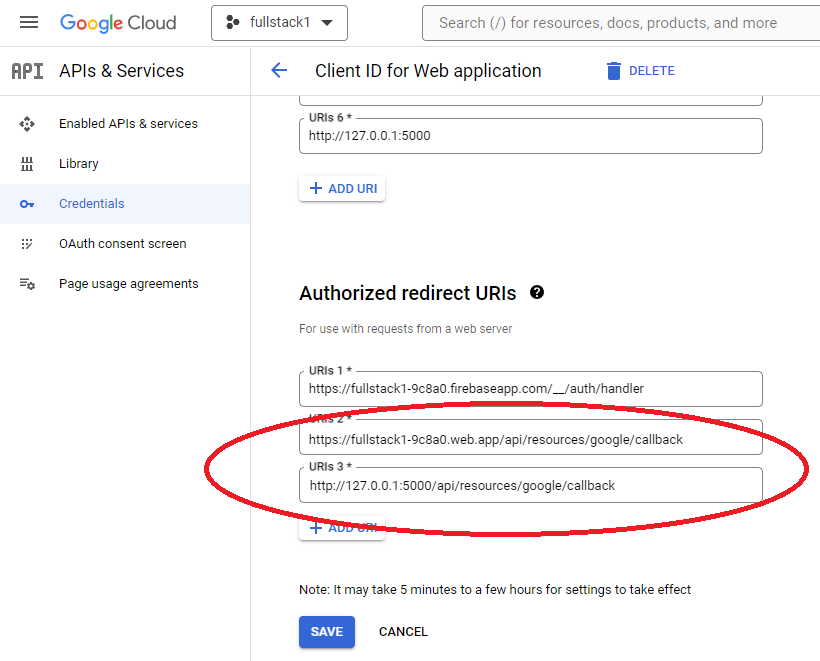
Add domain and redirect URI to the Oauth credentials created by Firebase.
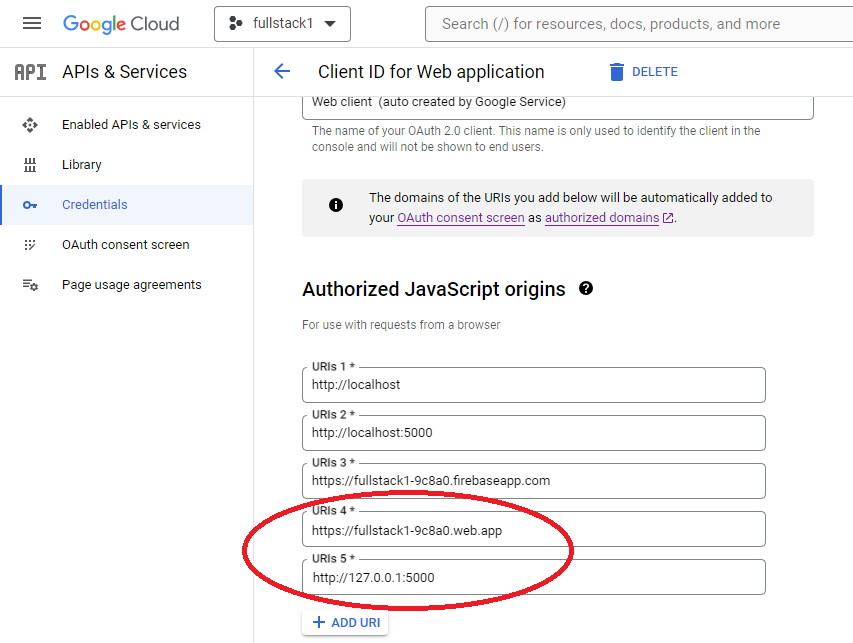
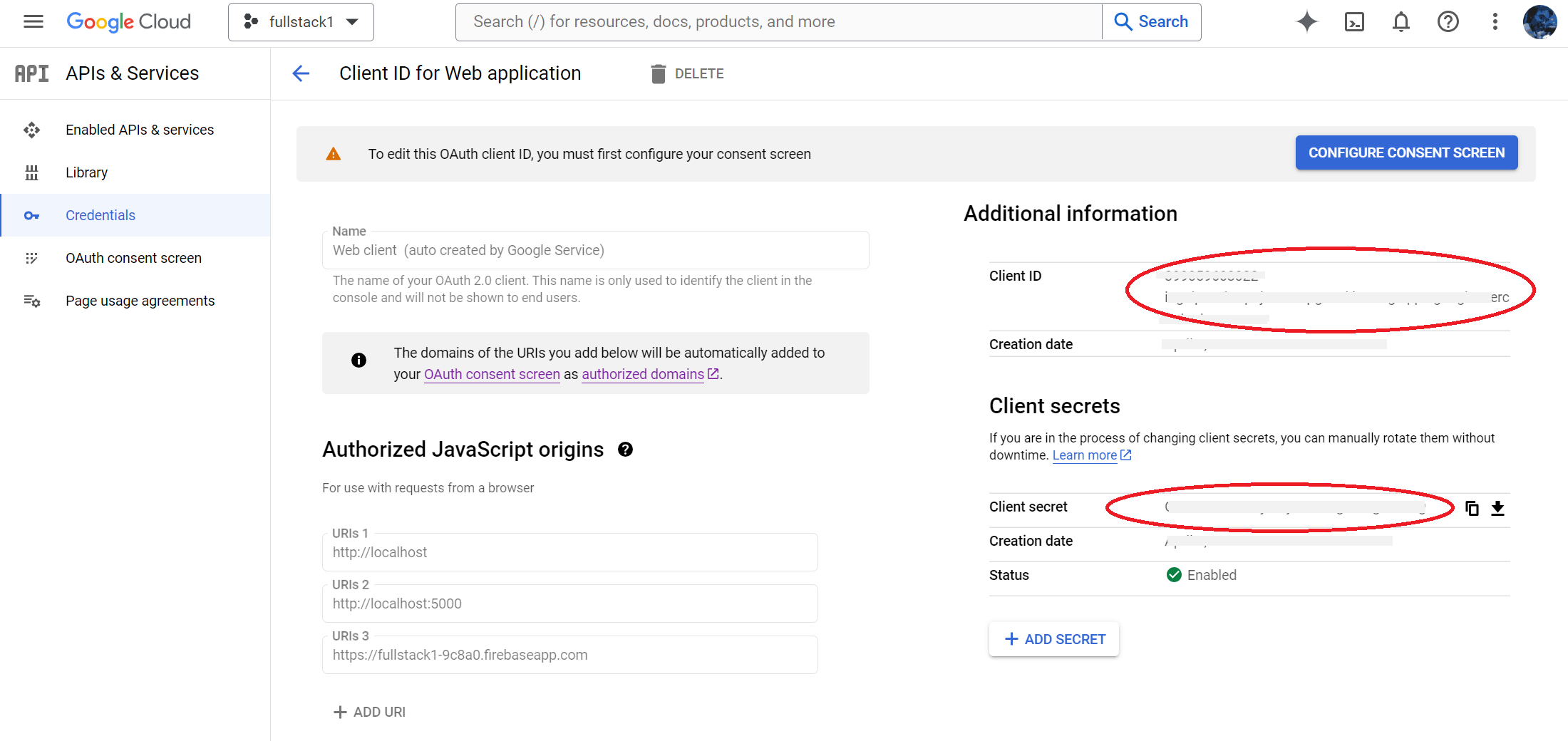
This is where we could find your GOOGLE_SIGN_IN_CLIENT_ID and GOOGLE_SIGN_IN_CLIENT_SECRET.
Configure the environment variables to enable Sign In with Google.
For frontend client.
.env.emulator
VITE_USE_MOCK=false
.env.production
VITE_USE_MOCK=false
For backend API server.
Find your Google Oauth credentials from the console located at https://console.cloud.google.com/apis
Use these values to populate the following:
- GOOGLE_SIGN_IN_CLIENT_ID
- GOOGLE_SIGN_IN_CLIENT_SECRET
.env.local
GOOGLE_SIGN_IN_CLIENT_ID=<FROM GOOGLE WEB API>
GOOGLE_SIGN_IN_CLIENT_SECRET=<FROM GOOGLE WEB API>
USE_MOCK=false
.env
GOOGLE_SIGN_IN_CLIENT_ID=<FROM GOOGLE WEB API>
GOOGLE_SIGN_IN_CLIENT_SECRET=<FROM GOOGLE WEB API>
USE_MOCK=false
Now, re-deploy to our remote or local environment for this to take effect.
For local environment, we will need to restart the emulator for the backend API server to pick up the changes in environment variables.